
Sonic Dream Team Guide
Sonic Dream Team Controller Setup: Play With a Gamepad
Pair a controller for Sonic Dream Team on phone, tablet, Mac or TV, and fix common pad problems.
 By Chris Parker · Mobile Games Reviewer
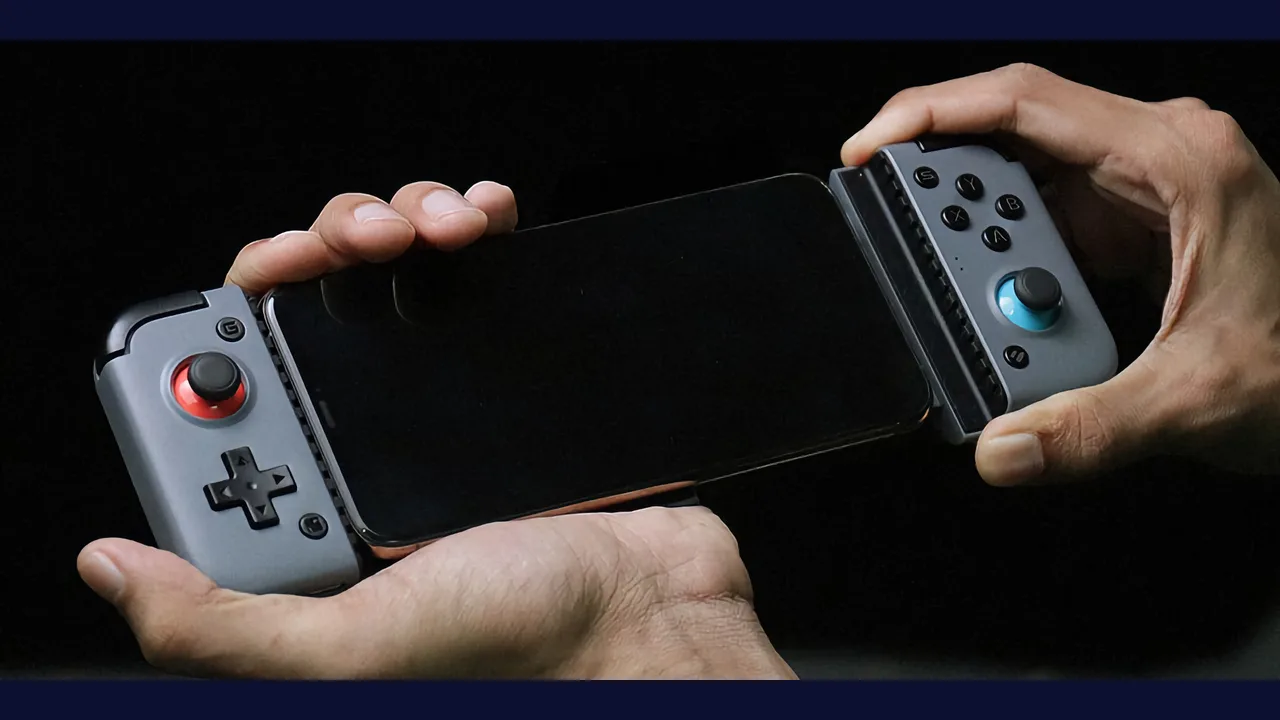
Why a controller helps
A controller makes Sonic Dream Team download feel like a console game: precise jumps, steady camera control, and long sessions without tired thumbs. Touch controls are fine for short runs, but a gamepad wins on any level with tight jumps or long rail sections.
Most modern Bluetooth controllers pair in under a minute, and the official service supports them across phone, tablet, computer and TV, so one pad can serve every screen you play on.
Pairing steps
Put your controller in pairing mode, open Bluetooth settings on your device, and select the controller from the list. Then open Sonic Dream Team and check that movement, jump and boost all respond before starting a mission.
On TV, pair the controller to the TV box itself, not to your phone. On a computer, pair it to the computer. The game reads whatever controller your device reports, so pair at the device level, never inside the game.
Fixing pad problems
If buttons feel swapped, restart the game after pairing, since the game reads the controller layout at launch. If the stick drifts, test the pad in another game first: drift is almost always hardware, and no setting in Sonic Dream Team fixes a worn stick. Related reading: Shadow in Sonic Dream Team: What the Shadow Update Adds.
If the controller disconnects mid run, check battery first, then move closer to the device. Bluetooth range in a busy room is shorter than the box promises, and a low battery causes exactly the dropouts players blame on the game.
Touch or pad
Use touch for quick daily missions and a pad for boss fights, score attack and long exploring sessions. Both are fully supported, and switching between them costs nothing, so match the control to the session, not to habit. Related reading: Knuckles Climbing in Sonic Dream Team: Walls Worth Scaling.